Viewing Refund Details
You can view details of a specific refund.
Sign in as described in Accessing the Client Portal and navigate to Collect > Payments > Refunds .
The Refunds page appears.
You can use the search bar to find a refund using the Refund ID. Click the drop-down next to the search bar and select Refund ID.
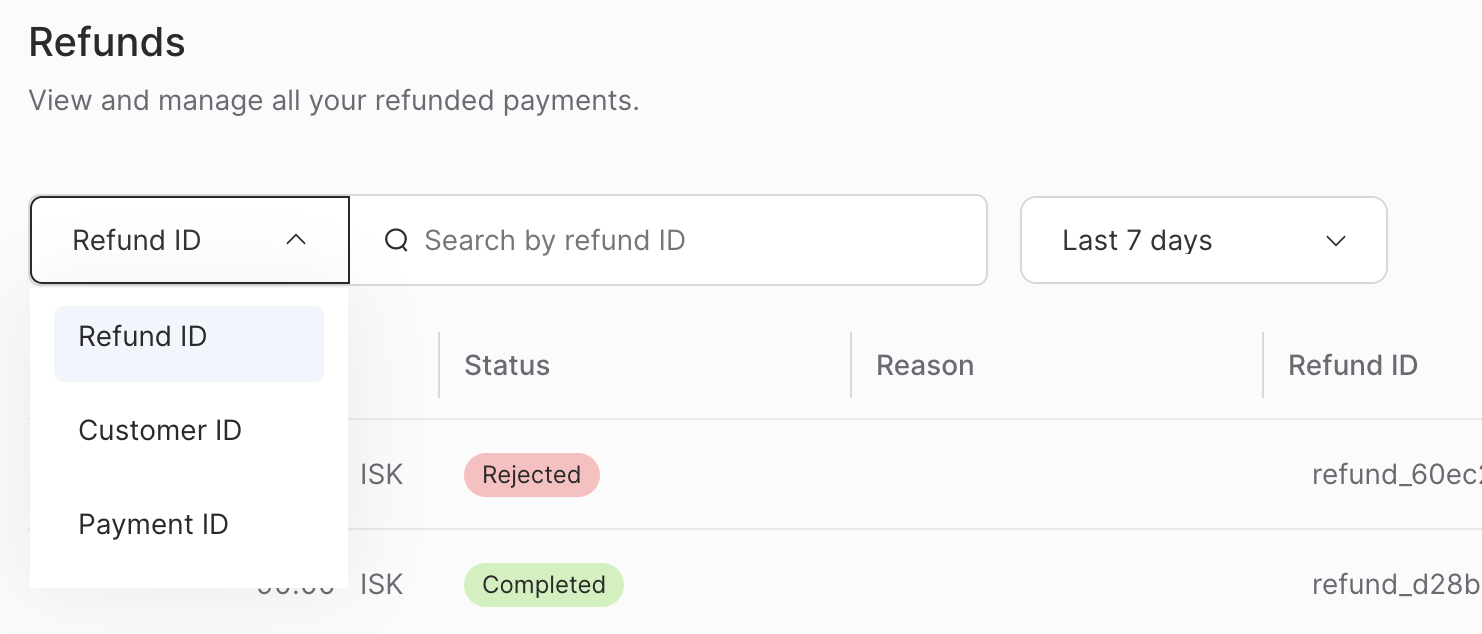
Enter the refund ID in the search bar. The refund ID is an alpha-numeric string starting with refund_.
Do one of the following:
For a preview of the refund, continue to step 5.
For refund details, continue to step 6.
Hover over the row that contains the refund you want to view and then click the row.
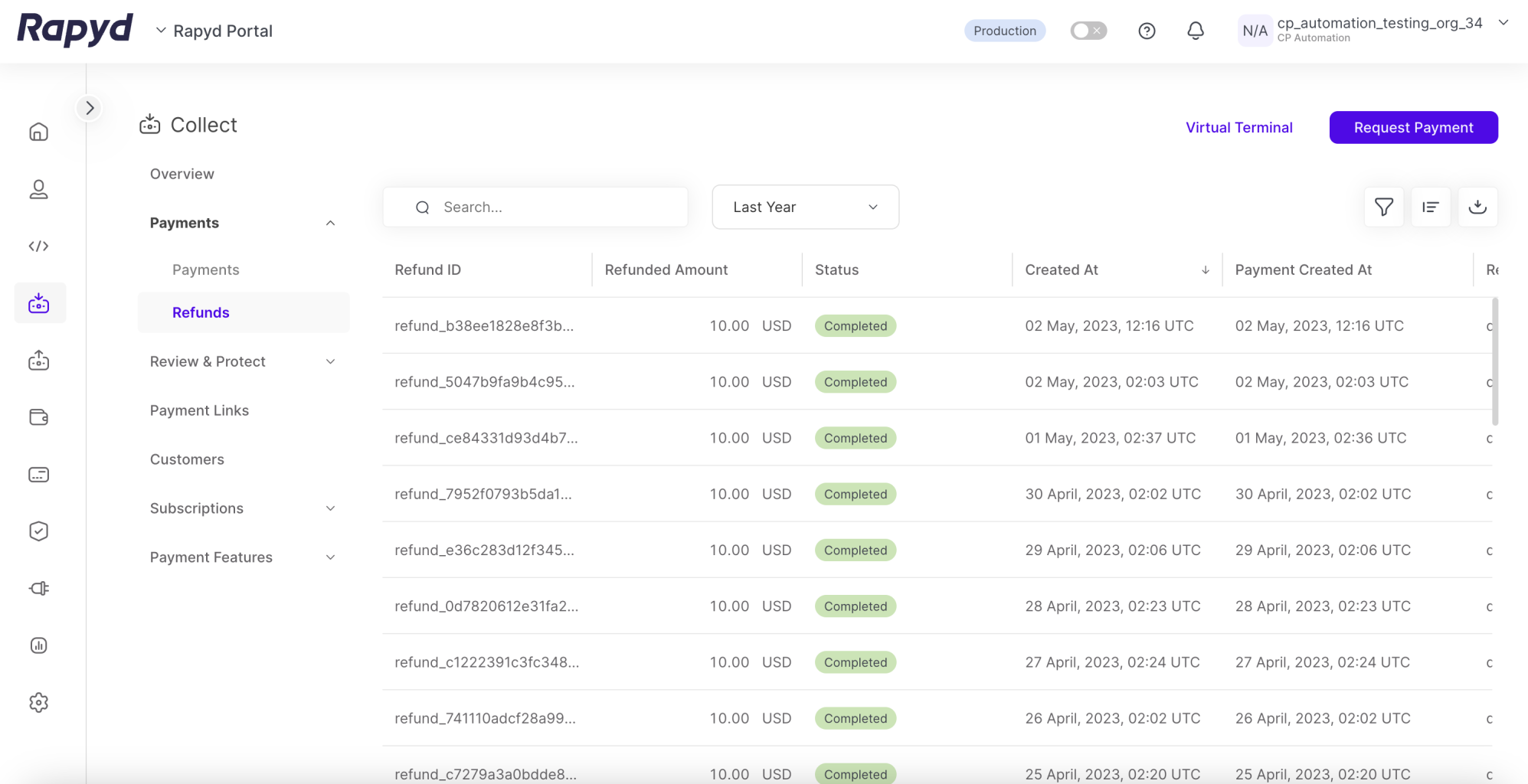
The following panel appears:
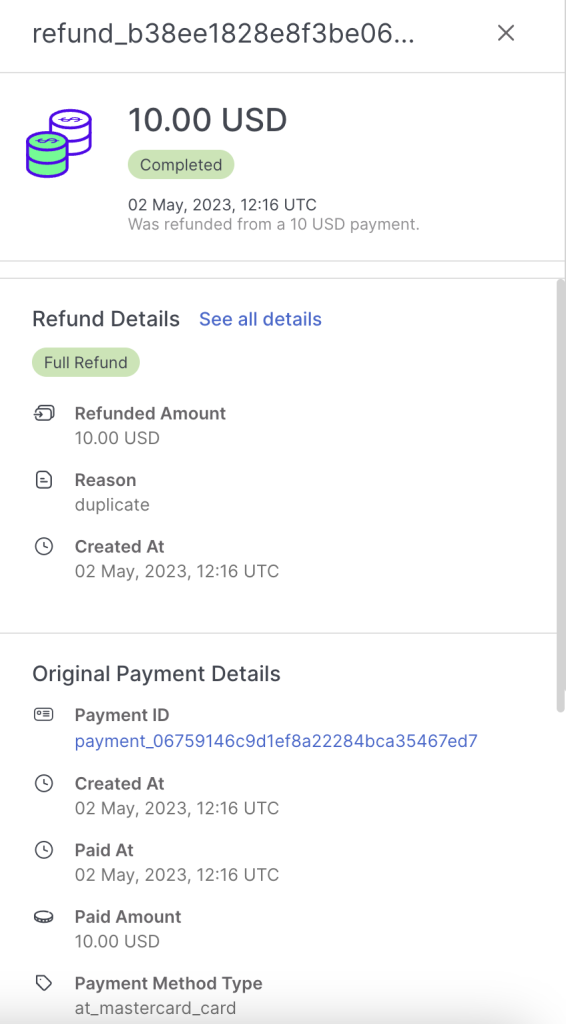
For a description of the information displayed, see Listing Refunds.
Tap the See more details icon to view all details of the refund you want to view.
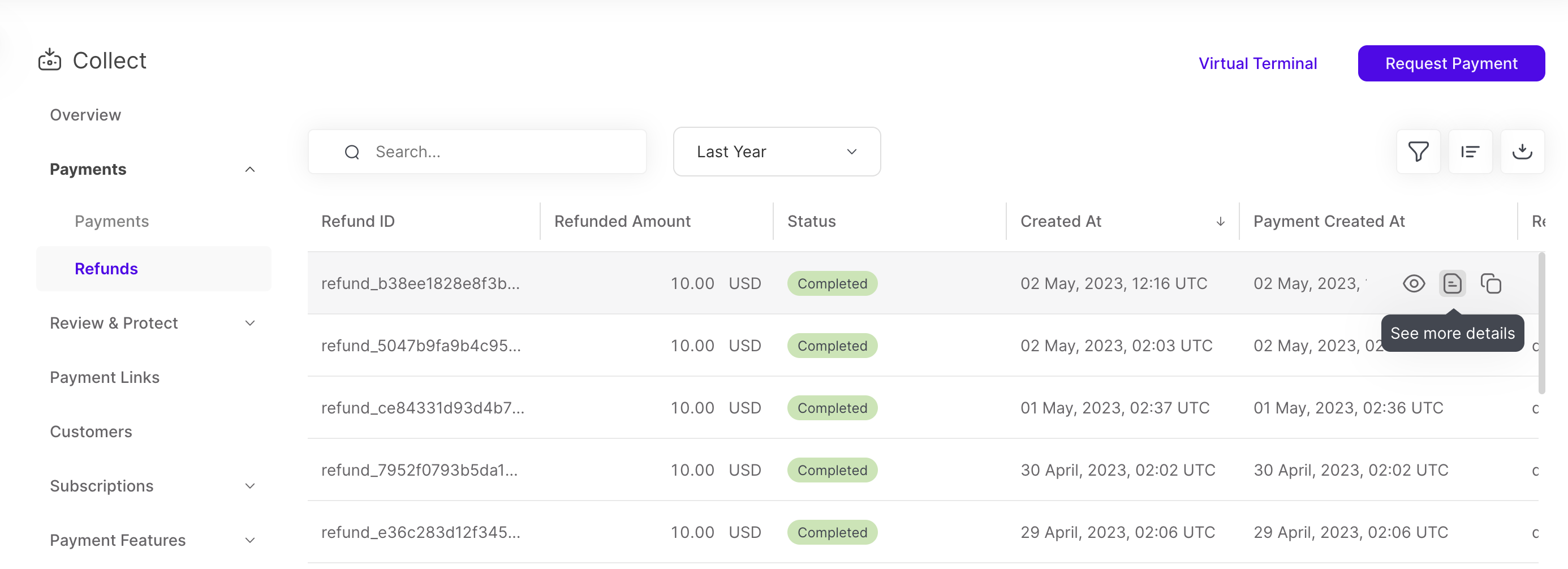
Note: You can also click the row and select See all details within the refund details panel.
The Refund Details page appears.
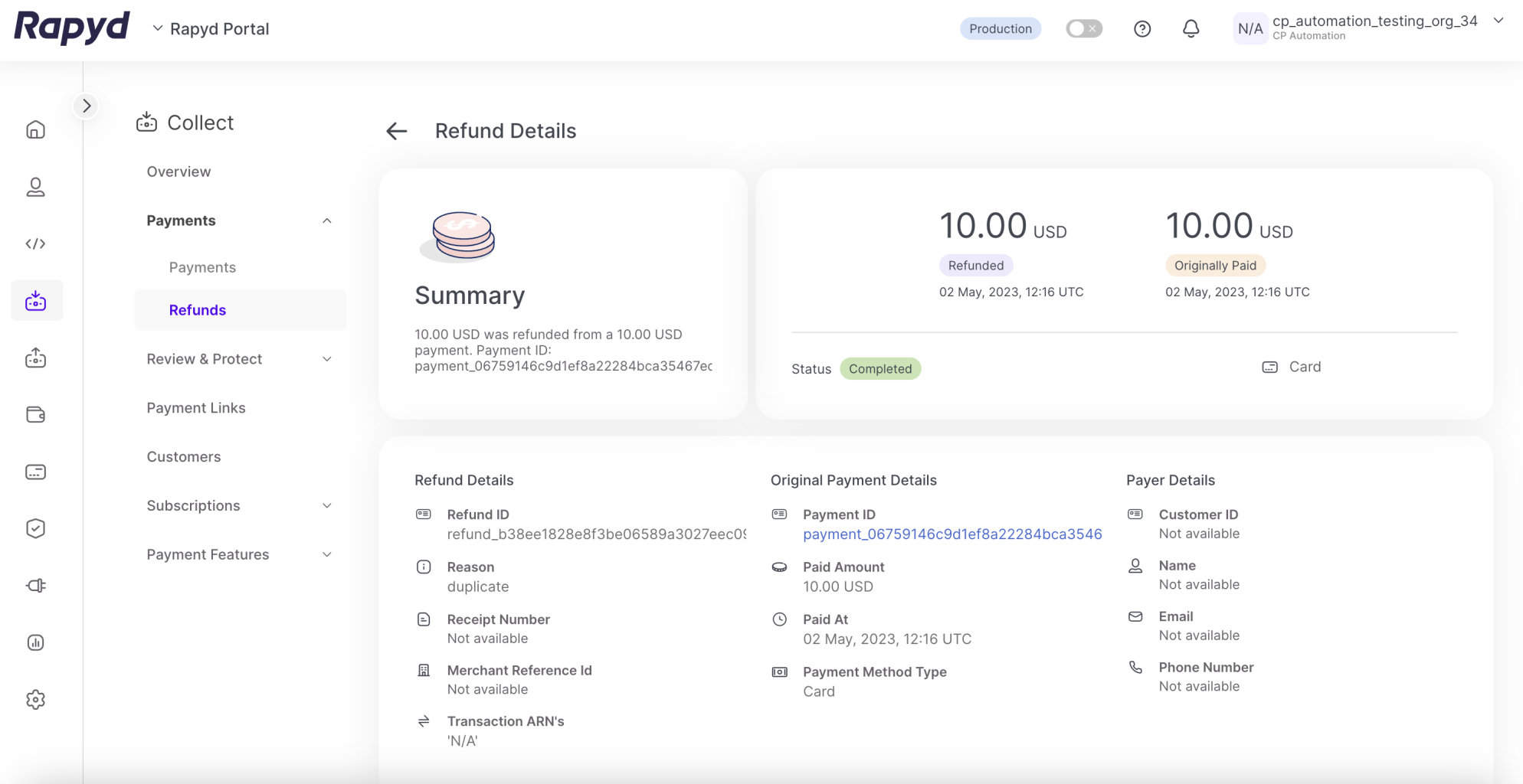
For a description of the information displayed, see Listing Refunds.